> ## Documentation Index
> Fetch the complete documentation index at: https://tyk-tt17611-iam-auth.mintlify.site/llms.txt
> Use this file to discover all available pages before exploring further.
# Managing MCP proxies using the Dashboard
> How to create, view, edit, and delete MCP proxies using the Tyk Dashboard UI, covering the proxy list, the creation wizard, the Settings and Primitives tabs, proxy-level middleware, per-primitive middleware, the full definition editor, and permissions.
The **MCP** section of the Tyk Dashboard is the central registry of all MCP proxies in your organization, whether they front a remote MCP server or are [generated directly from a Tyk-managed REST API](/ai-management/mcps/api-to-mcp). Each proxy entry records its upstream (a remote server address or a paired Tyk API), the listen path clients use to connect, the tools and resources it exposes, and the access policies that govern it. Teams have a single authoritative place to see what MCP capabilities are available, onboard new proxies, and control who can access them.
The section gives you a searchable catalog of all registered proxies, a guided creation flow for onboarding proxies of either type, and the MCP Designer. For a proxy fronting a remote MCP server, the Designer has two tabs: **Settings** for proxy-level configuration and middleware, and **Primitives** for managing per-primitive middleware on individual tools, resources, and prompts. For a REST API to MCP proxy, the Designer adds a third **Tool mapping** tab for selecting and enriching the tools generated from the source API.
For scripted or automated management, use the Dashboard API or Gateway API. See [MCP API extensions](/ai-management/mcp-gateway/mcp-api-extensions) for the full endpoint reference.
MCP proxy definitions use the Tyk OAS format. They are not available as Tyk Classic API definitions. For the full definition structure, see [MCP proxy definition](/ai-management/mcp-gateway/mcp-proxy-definitions).
***
## Permissions
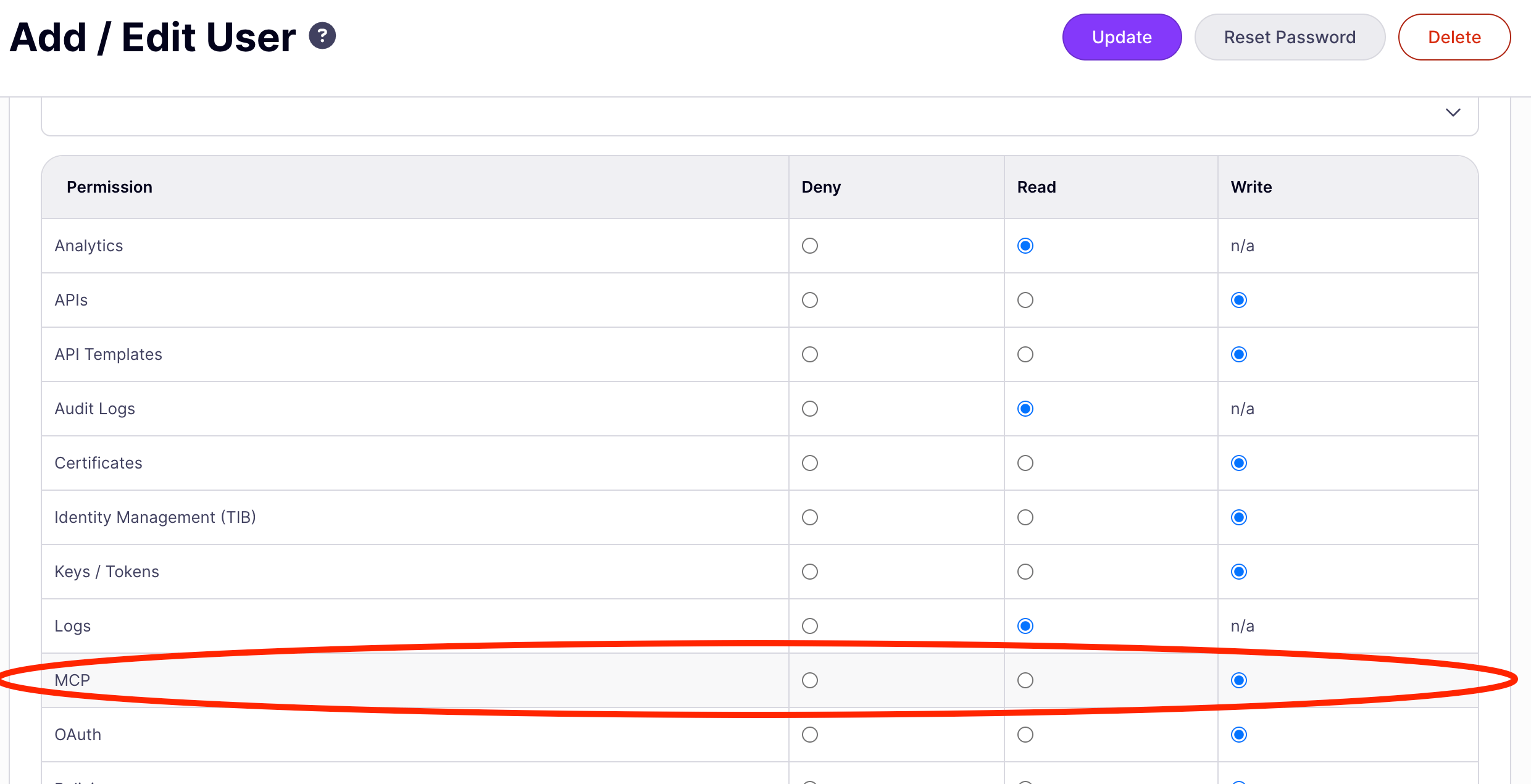
Access to MCP proxy management is controlled by the `mcp` permission on the user's role.
| Permission level | What the user can do |
| ---------------- | --------------------------------------------------------------------------------------------------------- |
| **Write** | Create, view, edit, and delete MCP proxies. Full access to all UI actions. |
| **Read** | View the proxy list and MCP Designer. Access the definition viewer. Cannot create, edit, save, or delete. |
| **Deny** | No access. The **MCP** sidebar item is not visible. |
Permissions are assigned in the Dashboard under **User Management → Users**. For organization-wide access control, configure permissions on user groups rather than individual users.
 ***
## The MCP proxies list
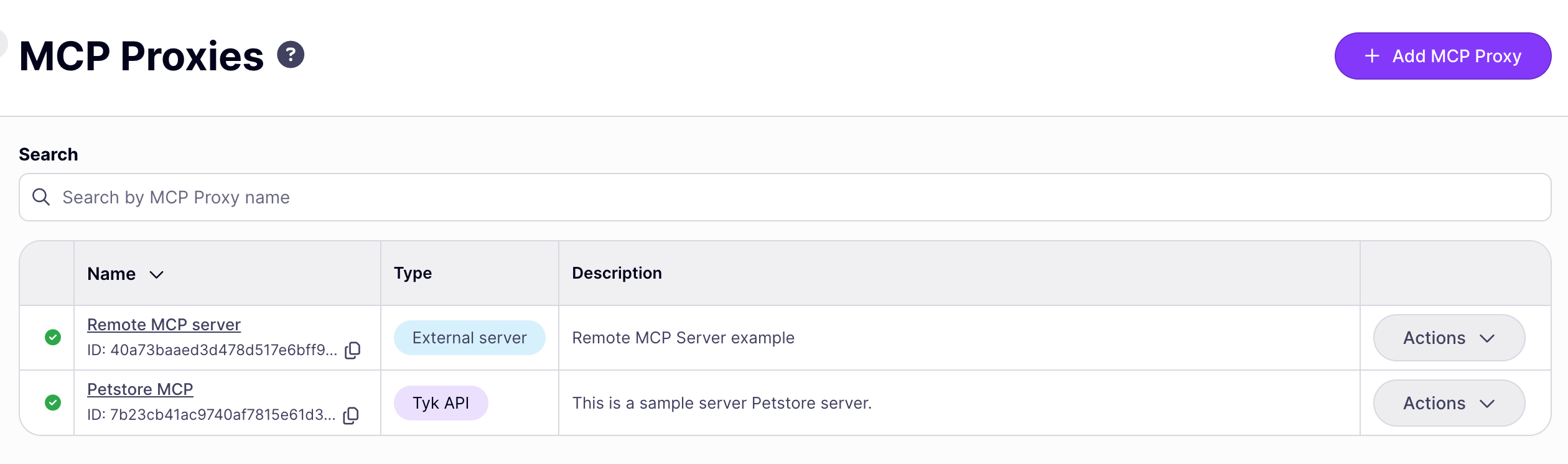
The list page shows every MCP proxy managed by this Dashboard instance. Clicking a row opens the MCP Designer.
The search input at the top filters proxies by name in real time. Clear the input to return to the full list.
The **Add MCP Proxy** button opens the [Create an MCP proxy](#create-an-mcp-proxy) screen.
***
## The MCP proxies list
The list page shows every MCP proxy managed by this Dashboard instance. Clicking a row opens the MCP Designer.
The search input at the top filters proxies by name in real time. Clear the input to return to the full list.
The **Add MCP Proxy** button opens the [Create an MCP proxy](#create-an-mcp-proxy) screen.
 ***
## Create an MCP proxy
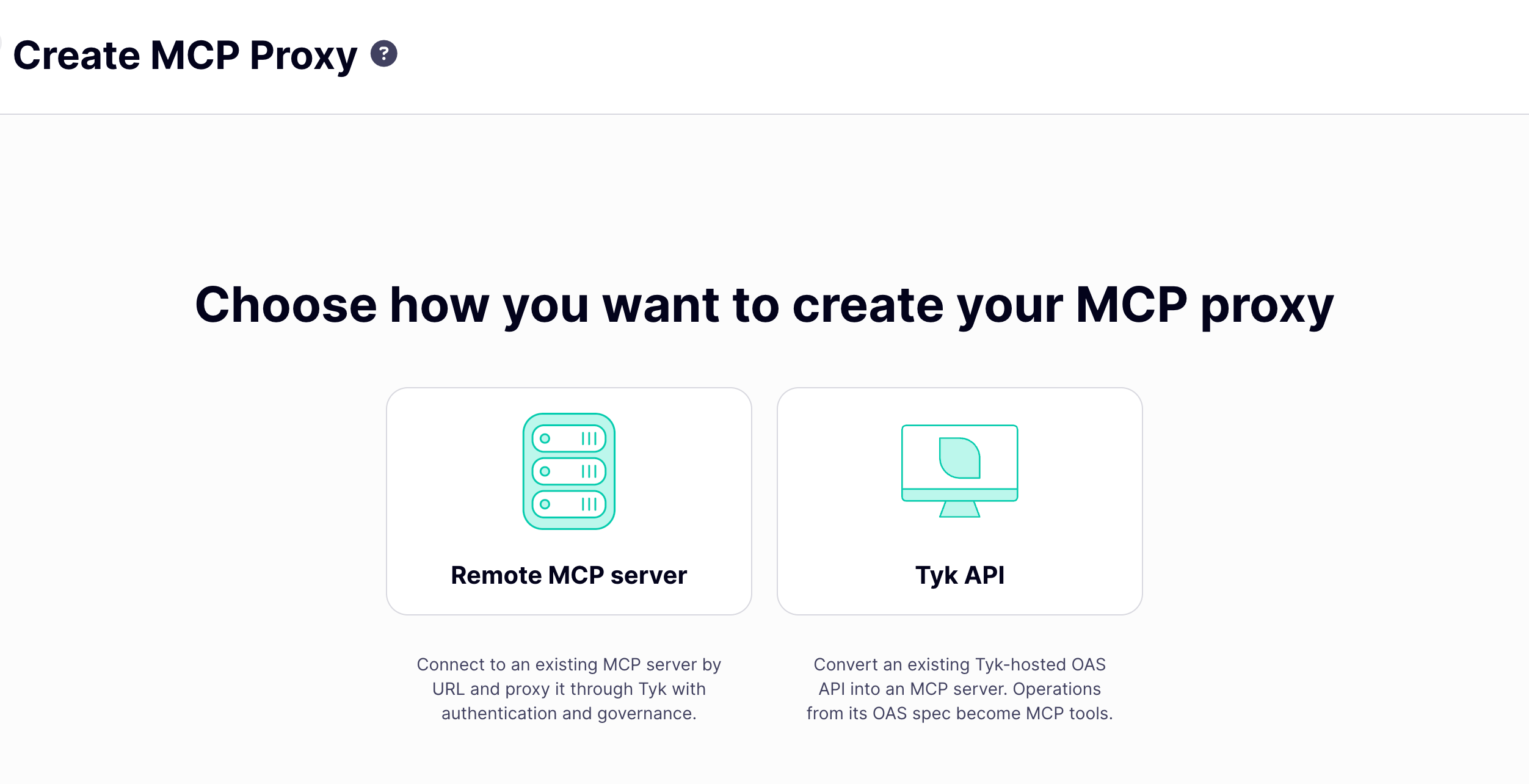
Clicking **Add MCP Proxy** on the proxy list opens the **Create MCP Proxy** screen, where you choose how to create your proxy:
* **Remote MCP server**: connect to an existing MCP server by URL and proxy it through Tyk with authentication and governance.
* **Tyk API**: [convert an existing Tyk OAS API into an MCP proxy](/ai-management/mcps/api-to-mcp). Operations from its OpenAPI spec become MCP tools.
***
## Create an MCP proxy
Clicking **Add MCP Proxy** on the proxy list opens the **Create MCP Proxy** screen, where you choose how to create your proxy:
* **Remote MCP server**: connect to an existing MCP server by URL and proxy it through Tyk with authentication and governance.
* **Tyk API**: [convert an existing Tyk OAS API into an MCP proxy](/ai-management/mcps/api-to-mcp). Operations from its OpenAPI spec become MCP tools.
 Each choice opens a different wizard.
### Remote MCP server
This wizard collects the minimum information needed to proxy an existing MCP server. It has three steps.
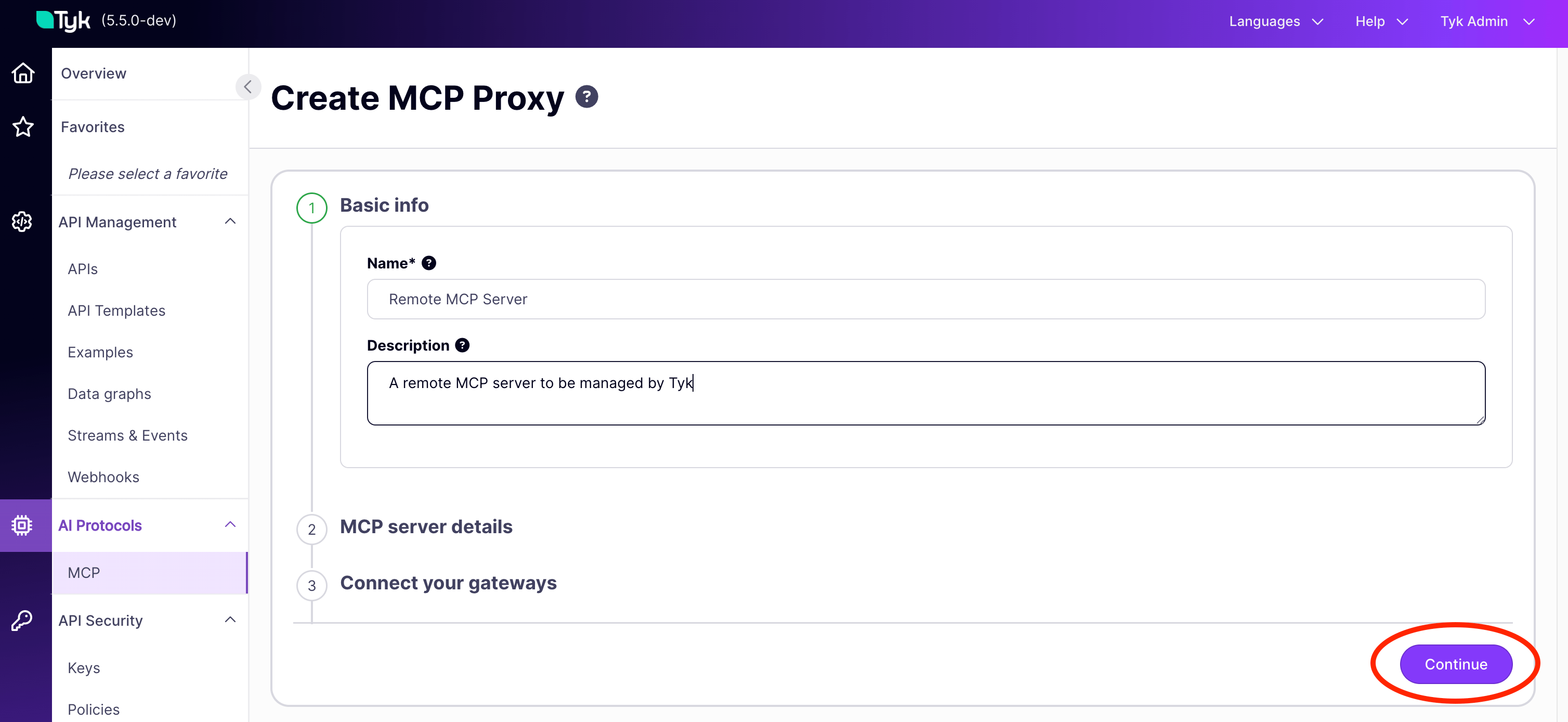
#### Step 1: Basic info
| Field | Required | What it sets |
| --------------- | -------- | ---------------------------------------------------------------------------------------------------------------------------- |
| **Name** | Yes | Display name for the proxy. Also used to identify it in policy and key configuration. Maps to `x-tyk-api-gateway.info.name`. |
| **Description** | No | Free-text description for team reference. Maps to `info.description`. |
The name must be unique across all MCP proxies in this Dashboard instance.
Click **Continue** to proceed.
Each choice opens a different wizard.
### Remote MCP server
This wizard collects the minimum information needed to proxy an existing MCP server. It has three steps.
#### Step 1: Basic info
| Field | Required | What it sets |
| --------------- | -------- | ---------------------------------------------------------------------------------------------------------------------------- |
| **Name** | Yes | Display name for the proxy. Also used to identify it in policy and key configuration. Maps to `x-tyk-api-gateway.info.name`. |
| **Description** | No | Free-text description for team reference. Maps to `info.description`. |
The name must be unique across all MCP proxies in this Dashboard instance.
Click **Continue** to proceed.
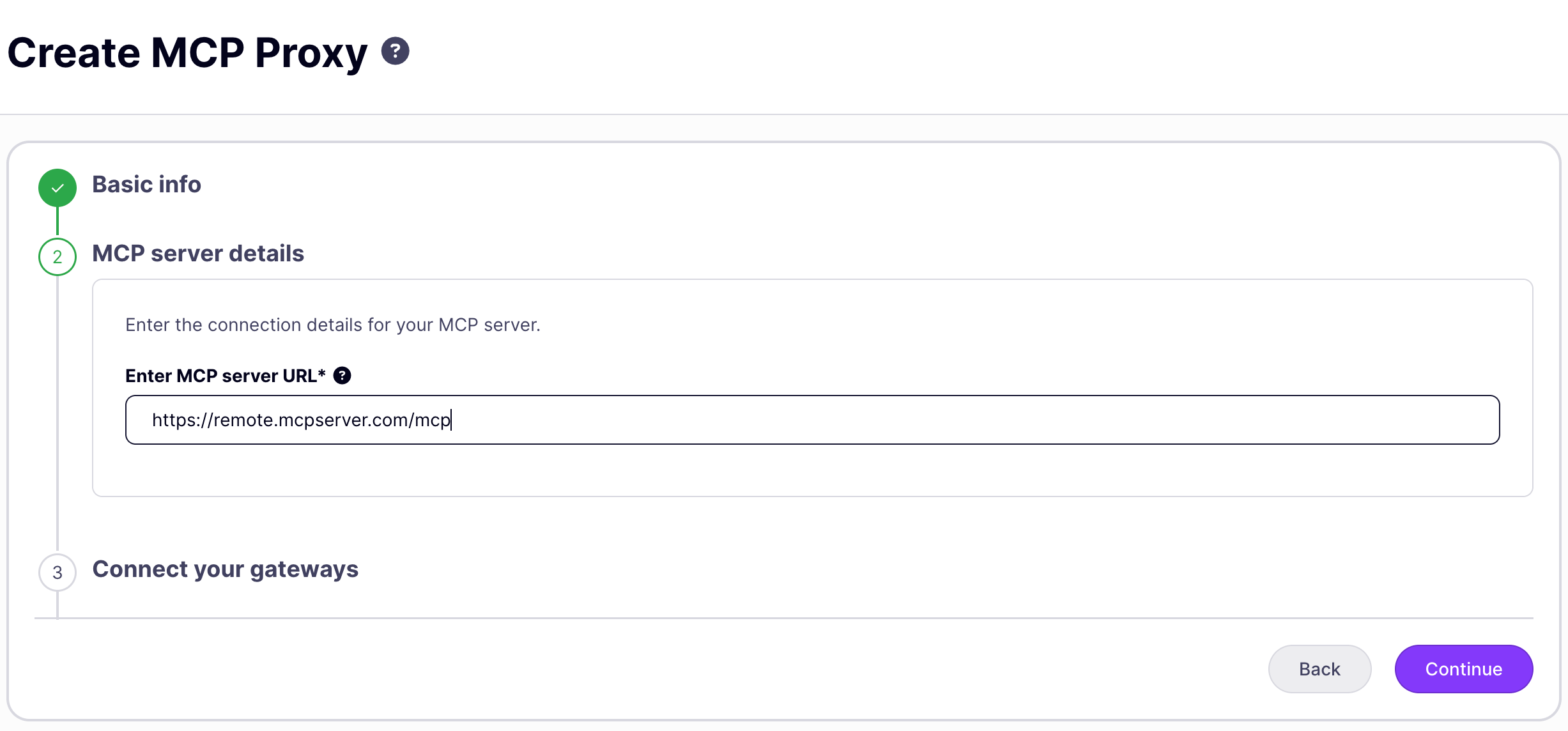
 #### Step 2: MCP server details
| Field | Required | What it sets |
| ------------------------ | -------- | -------------------------------------------------------------------------------------------------------------------------------------------------- |
| **Enter MCP server URL** | Yes | The full URL where your upstream MCP server is accessible. Tyk forwards all MCP traffic to this address. Maps to `x-tyk-api-gateway.upstream.url`. |
Enter the full URL of your upstream MCP server, for example `https://weather-mcp.example.com/mcp`. This is the server Tyk proxies to, not the URL clients use to connect to Tyk.
Click **Continue** to proceed.
#### Step 2: MCP server details
| Field | Required | What it sets |
| ------------------------ | -------- | -------------------------------------------------------------------------------------------------------------------------------------------------- |
| **Enter MCP server URL** | Yes | The full URL where your upstream MCP server is accessible. Tyk forwards all MCP traffic to this address. Maps to `x-tyk-api-gateway.upstream.url`. |
Enter the full URL of your upstream MCP server, for example `https://weather-mcp.example.com/mcp`. This is the server Tyk proxies to, not the URL clients use to connect to Tyk.
Click **Continue** to proceed.
 #### Step 3: Connect your gateways
| Field | Required | What it sets |
| ---------------------- | -------- | ------------------------------------------------------------------------------------------------------------------------------------ |
| **Deployment targets** | No | One or more gateway tags to deploy this proxy to. If left blank and the status is **Active**, Tyk deploys the proxy to all gateways. |
| **MCP proxy Status** | Yes | The initial status of the proxy: **Active** or **Inactive**. |
Click **Finish** to save. The Dashboard displays "MCP proxy successfully created" and returns you to the proxy list.
For most deployments you'll want to open the MCP Designer to configure authentication, add per-primitive middleware, or set up OAuth discovery. See the [Settings tab](#settings-tab) and [Primitives tab](#primitives-tab) below.
### Tyk API
This wizard generates an MCP proxy directly from a Tyk-managed REST API. It has four steps.
#### Step 1: Basic info
Same **Name** and **Description** fields as the remote MCP server wizard, above.
#### Step 2: Select API
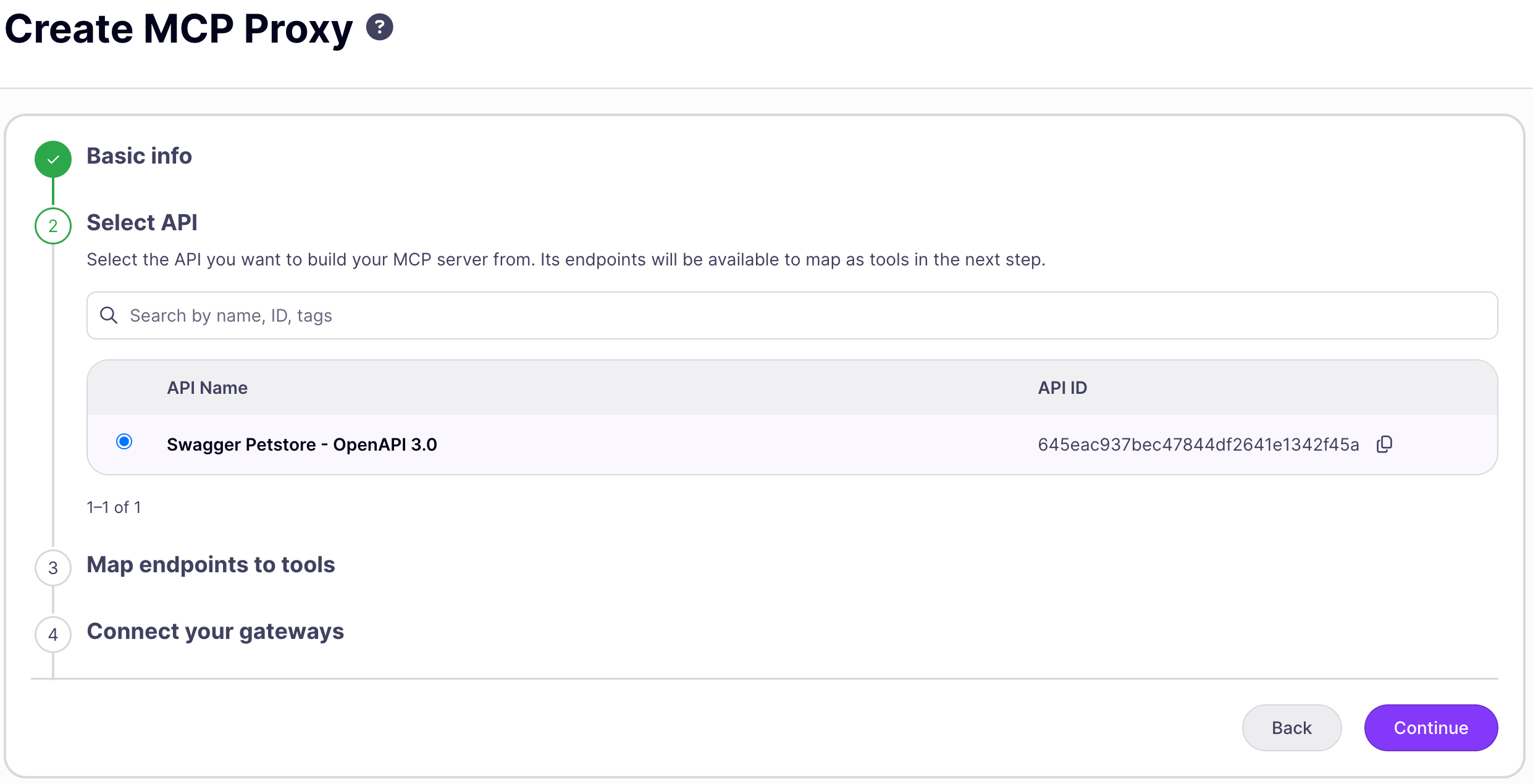
Search for the source API by name, ID, or tags. Selecting a row expands a version picker so you can choose which version of the API to expose; the proxy is locked to that version, and switching to a different version later requires creating a new proxy.
Only Tyk OAS APIs appear in this list. Tyk Classic API definitions cannot be used to generate MCP proxies. See [Requirements](/ai-management/mcp-gateway/overview#requirements-and-limitations).
Click **Continue** to proceed.
#### Step 3: Connect your gateways
| Field | Required | What it sets |
| ---------------------- | -------- | ------------------------------------------------------------------------------------------------------------------------------------ |
| **Deployment targets** | No | One or more gateway tags to deploy this proxy to. If left blank and the status is **Active**, Tyk deploys the proxy to all gateways. |
| **MCP proxy Status** | Yes | The initial status of the proxy: **Active** or **Inactive**. |
Click **Finish** to save. The Dashboard displays "MCP proxy successfully created" and returns you to the proxy list.
For most deployments you'll want to open the MCP Designer to configure authentication, add per-primitive middleware, or set up OAuth discovery. See the [Settings tab](#settings-tab) and [Primitives tab](#primitives-tab) below.
### Tyk API
This wizard generates an MCP proxy directly from a Tyk-managed REST API. It has four steps.
#### Step 1: Basic info
Same **Name** and **Description** fields as the remote MCP server wizard, above.
#### Step 2: Select API
Search for the source API by name, ID, or tags. Selecting a row expands a version picker so you can choose which version of the API to expose; the proxy is locked to that version, and switching to a different version later requires creating a new proxy.
Only Tyk OAS APIs appear in this list. Tyk Classic API definitions cannot be used to generate MCP proxies. See [Requirements](/ai-management/mcp-gateway/overview#requirements-and-limitations).
Click **Continue** to proceed.
 #### Step 3: Map endpoints to tools
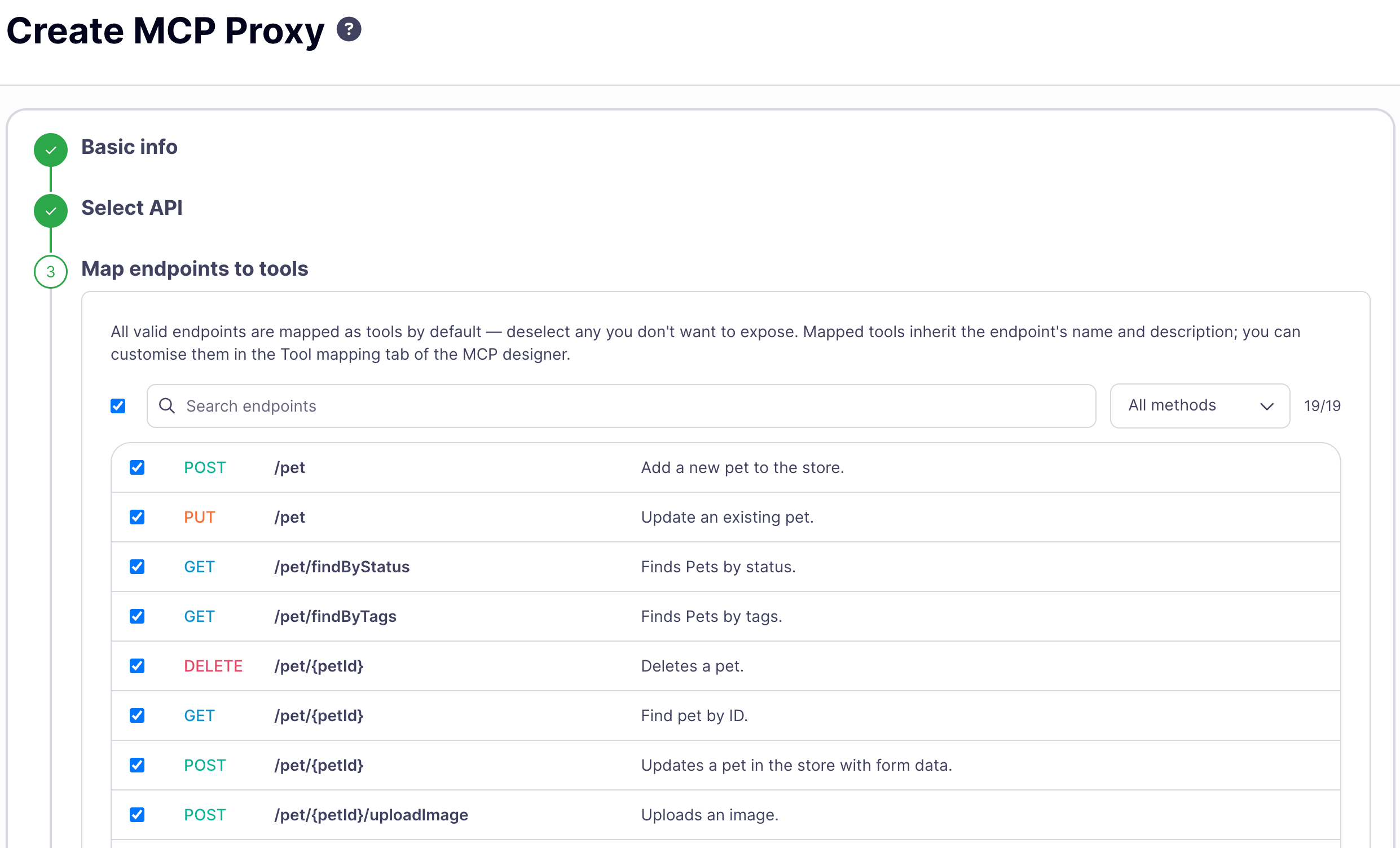
All valid endpoints from the source API's OpenAPI spec are mapped as tools by default. Deselect any endpoint you don't want to expose, following Tyk's [Deny by Default](/api-management/security-best-practices#deny-by-default) guidance: favor building up an explicit allow-list of only the operations an agent needs, rather than leaving every operation exposed. Use the search box and HTTP method filter to narrow the list; the counter shows how many of the total endpoints are currently selected.
Mapped tools inherit the source endpoint's name and description. To override a tool's name, description, or parameters, use the **Tool mapping** tab of the MCP Designer after creating the proxy. See [Tool mapping tab](#tool-mapping-tab) below.
Click **Continue** to proceed.
#### Step 3: Map endpoints to tools
All valid endpoints from the source API's OpenAPI spec are mapped as tools by default. Deselect any endpoint you don't want to expose, following Tyk's [Deny by Default](/api-management/security-best-practices#deny-by-default) guidance: favor building up an explicit allow-list of only the operations an agent needs, rather than leaving every operation exposed. Use the search box and HTTP method filter to narrow the list; the counter shows how many of the total endpoints are currently selected.
Mapped tools inherit the source endpoint's name and description. To override a tool's name, description, or parameters, use the **Tool mapping** tab of the MCP Designer after creating the proxy. See [Tool mapping tab](#tool-mapping-tab) below.
Click **Continue** to proceed.
 #### Step 4: Connect your gateways
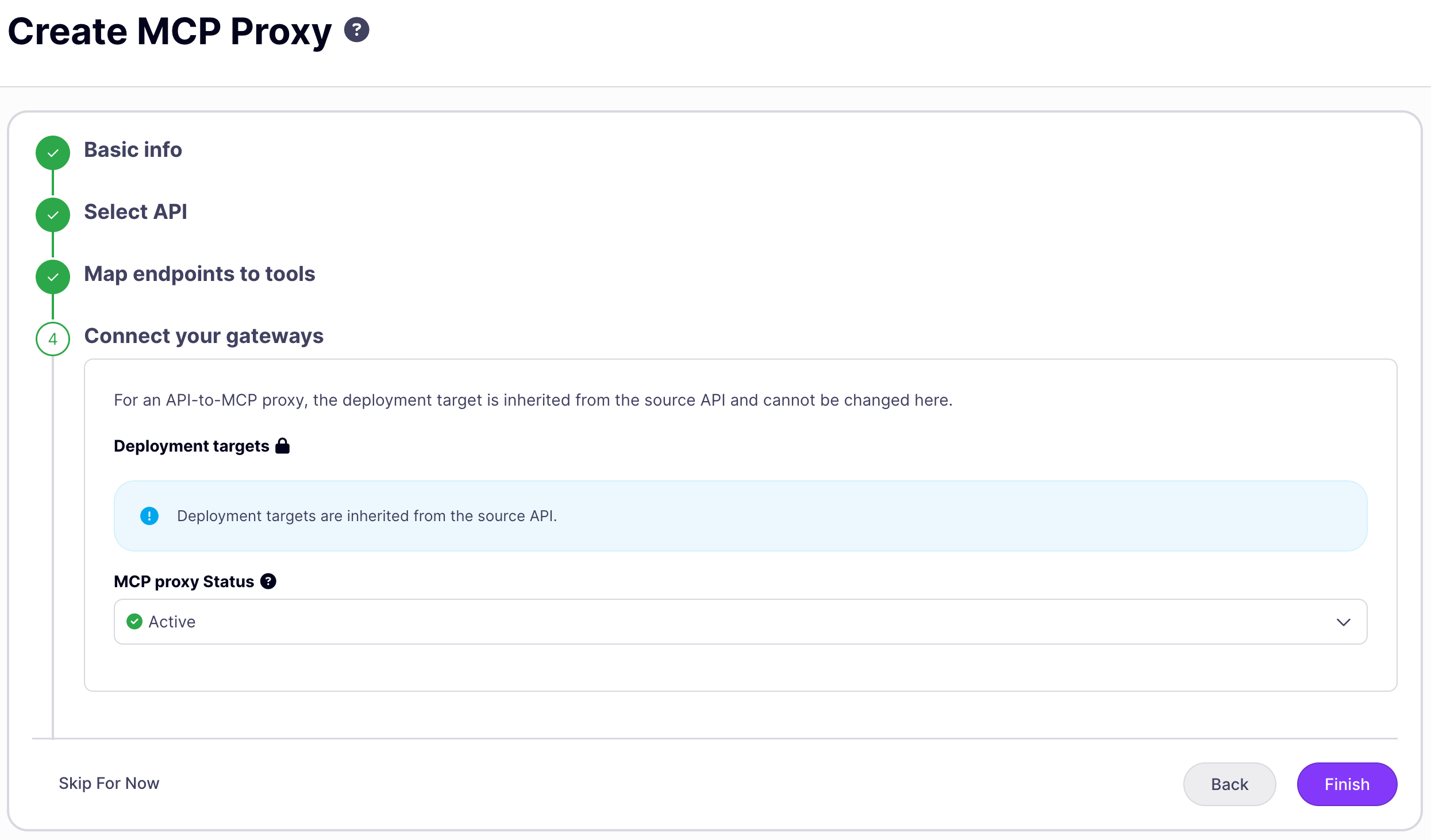
Unlike the remote MCP server wizard, deployment targets for a REST API to MCP proxy are inherited from the source API and can't be set here. Set the initial **MCP proxy Status** (**Active** or **Inactive**).
Click **Finish**. This does not create the proxy immediately: Tyk previews the generated tool catalog and takes you to the MCP Designer with the preview pre-populated. Review the tools on the [Tool mapping tab](#tool-mapping-tab), then click **Save MCP Proxy** to create the proxy.
#### Step 4: Connect your gateways
Unlike the remote MCP server wizard, deployment targets for a REST API to MCP proxy are inherited from the source API and can't be set here. Set the initial **MCP proxy Status** (**Active** or **Inactive**).
Click **Finish**. This does not create the proxy immediately: Tyk previews the generated tool catalog and takes you to the MCP Designer with the preview pre-populated. Review the tools on the [Tool mapping tab](#tool-mapping-tab), then click **Save MCP Proxy** to create the proxy.
 The wizard creates the proxy with no authentication (keyless access) by default. Before deploying to production, open the [Settings tab](#settings-tab) to configure an authentication method, or the [Tool mapping tab](#tool-mapping-tab) to rename tools and parameters before saving.
***
## The MCP Designer
Clicking a proxy in the list opens the MCP Designer. For a proxy fronting a remote MCP server, the MCP Designer has two tabs: **Settings** and **Primitives**. For a REST API to MCP proxy, the Designer inserts a third tab, **Tool mapping**, between them.
The wizard creates the proxy with no authentication (keyless access) by default. Before deploying to production, open the [Settings tab](#settings-tab) to configure an authentication method, or the [Tool mapping tab](#tool-mapping-tab) to rename tools and parameters before saving.
***
## The MCP Designer
Clicking a proxy in the list opens the MCP Designer. For a proxy fronting a remote MCP server, the MCP Designer has two tabs: **Settings** and **Primitives**. For a REST API to MCP proxy, the Designer inserts a third tab, **Tool mapping**, between them.
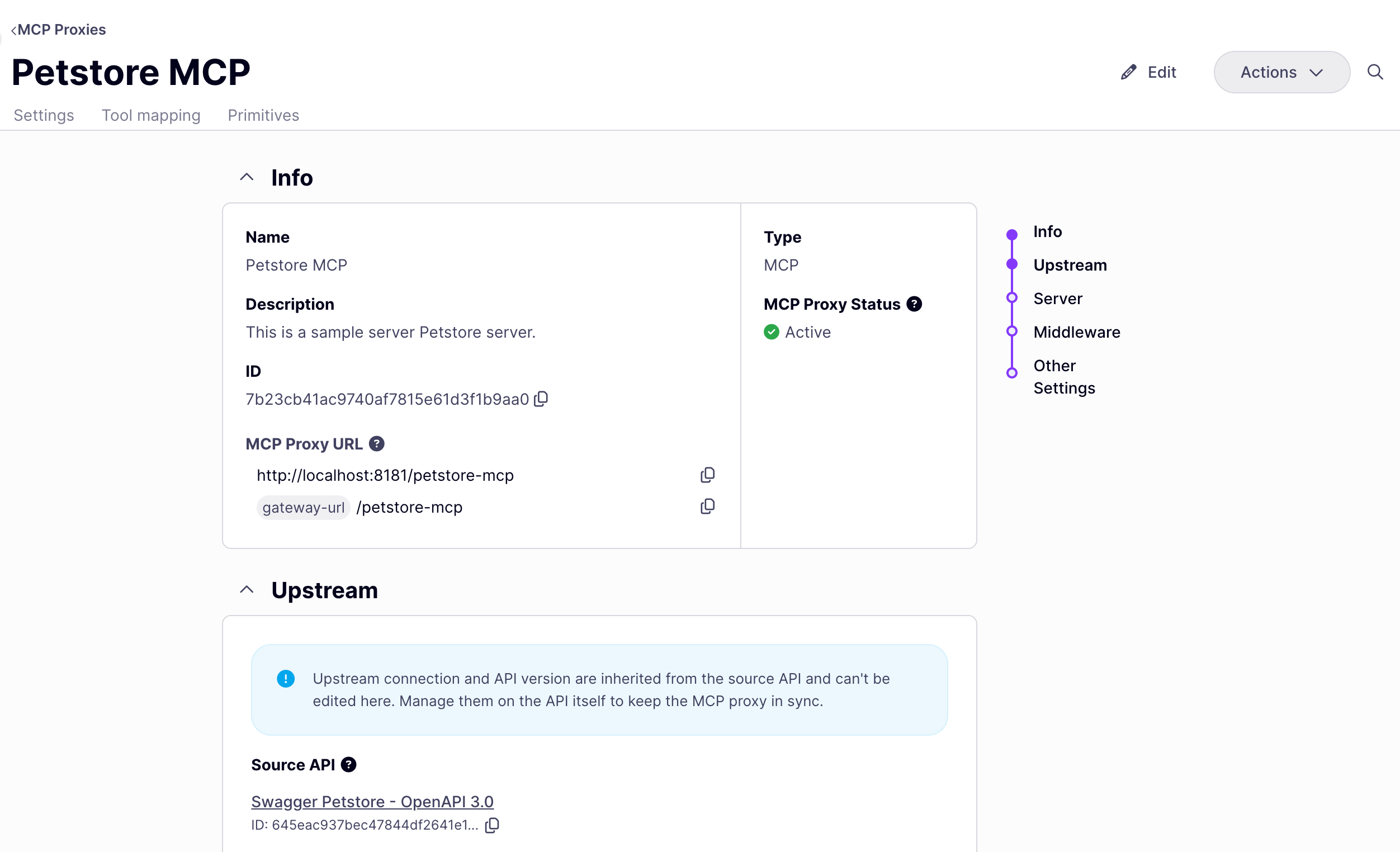 ### Settings tab
The **Settings** tab covers two areas: core proxy configuration and proxy-level middleware.
**Core configuration**: name, upstream server URL, and gateway assignment. To edit these fields, make your changes and click **Save MCP Proxy**. The Dashboard triggers a gateway reload automatically.
**Authentication**: the authentication method applied to all inbound requests. Select a method from the **Authentication type** dropdown. See [Authentication](/api-management/client-authentication) for all supported methods and configuration options.
**Proxy-level middleware**: middleware that applies to all requests through this proxy, regardless of which primitive is invoked. The following options are available in the Settings tab:
| Middleware | What it does |
| ------------------------------ | ----------------------------------------------------------------------------------------------------------------------- |
| **CORS** | Configures cross-origin resource sharing headers for browser-based MCP clients. |
| **Transform Request Headers** | Adds, removes, or modifies HTTP headers on every request forwarded to the upstream. |
| **Transform Response Headers** | Adds, removes, or modifies HTTP headers on every response returned to clients. |
| **Context Variables** | Enables Tyk context variables (request metadata such as IP, key ID, and path) for use in header transforms and plugins. |
| **Traffic Logs** | Configures how request and response data is captured in analytics. |
| **Plugin Config / Bundle** | Configures custom plugin drivers and bundle sources for gateway-side plugin execution. |
These options map to `x-tyk-api-gateway.middleware.global` in the proxy definition. For full configuration details, see [MCP middleware: proxy level](/ai-management/mcp-gateway/mcp-middleware#dashboard-settings-tab-proxy-level).
### Tool mapping tab
The **Tool mapping** tab appears only on REST API to MCP proxies. It lists every operation available from the source API on the left; only the operations you select are exposed as tools on this proxy. A counter shows how many of the total operations are currently exposed, and a search box filters the list.
### Settings tab
The **Settings** tab covers two areas: core proxy configuration and proxy-level middleware.
**Core configuration**: name, upstream server URL, and gateway assignment. To edit these fields, make your changes and click **Save MCP Proxy**. The Dashboard triggers a gateway reload automatically.
**Authentication**: the authentication method applied to all inbound requests. Select a method from the **Authentication type** dropdown. See [Authentication](/api-management/client-authentication) for all supported methods and configuration options.
**Proxy-level middleware**: middleware that applies to all requests through this proxy, regardless of which primitive is invoked. The following options are available in the Settings tab:
| Middleware | What it does |
| ------------------------------ | ----------------------------------------------------------------------------------------------------------------------- |
| **CORS** | Configures cross-origin resource sharing headers for browser-based MCP clients. |
| **Transform Request Headers** | Adds, removes, or modifies HTTP headers on every request forwarded to the upstream. |
| **Transform Response Headers** | Adds, removes, or modifies HTTP headers on every response returned to clients. |
| **Context Variables** | Enables Tyk context variables (request metadata such as IP, key ID, and path) for use in header transforms and plugins. |
| **Traffic Logs** | Configures how request and response data is captured in analytics. |
| **Plugin Config / Bundle** | Configures custom plugin drivers and bundle sources for gateway-side plugin execution. |
These options map to `x-tyk-api-gateway.middleware.global` in the proxy definition. For full configuration details, see [MCP middleware: proxy level](/ai-management/mcp-gateway/mcp-middleware#dashboard-settings-tab-proxy-level).
### Tool mapping tab
The **Tool mapping** tab appears only on REST API to MCP proxies. It lists every operation available from the source API on the left; only the operations you select are exposed as tools on this proxy. A counter shows how many of the total operations are currently exposed, and a search box filters the list.
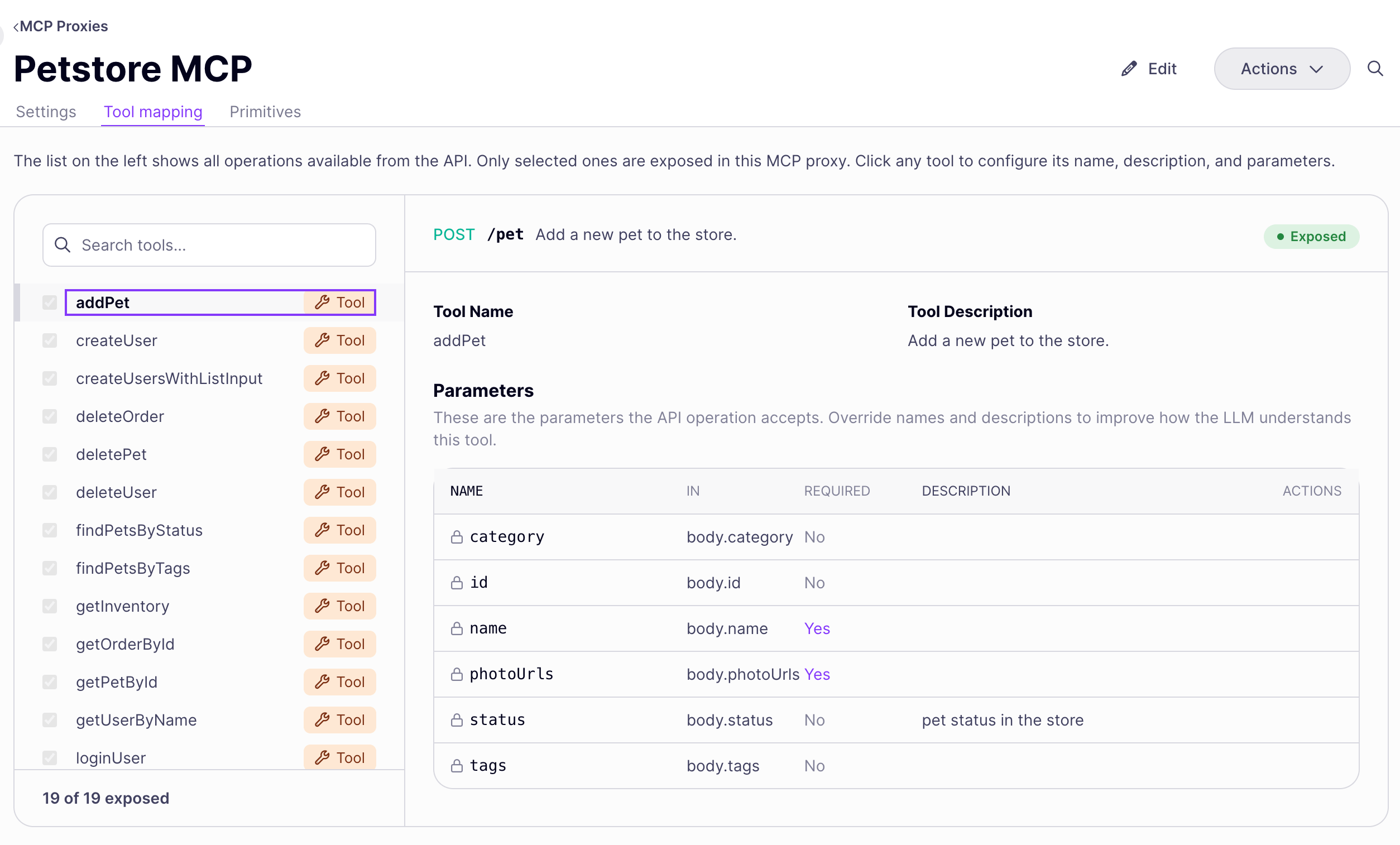 Click an operation to open its detail pane and configure:
| Field | What it does |
| -------------------- | ----------------------------------------------------------------------------------------------------------------------------------------------------------------------------------------------------------------------------------------------------------------------------------------------------------------------------------------------------------------- |
| **Tool Name** | Overrides the tool's caller-facing name. Defaults to the name Tyk derived from the operation (see [MCP Gateway: Core Concepts](/ai-management/mcp-gateway/core-concepts#tool-naming-and-discovery)). |
| **Tool Description** | Overrides the tool's caller-facing description. |
| **Parameters table** | Lists the operation's path, query, header, and body parameters (Name, In, Required, Description). Each parameter has an inline editor to override its caller-facing name and description, which is useful for improving how an LLM interprets the tool, or for resolving a parameter name collision. Leave a field blank to use the original name or description. |
The checkbox next to each operation in the left-hand list controls whether it's exposed: checking it adds the operation as a tool, unchecking it hides the tool without deleting your name, description, or parameter overrides. The detail pane shows an **Exposed** or **Hidden** pill reflecting this state.
Click **Save MCP Proxy** to apply your changes. These map to `x-tyk-mcp-server.primitives[]` in the proxy definition. See [REST API to MCP x-tyk-mcp-server extension](/ai-management/mcp-gateway/api-to-mcp-definitions) for the full field reference.
### Primitives tab
The **Primitives** tab lists every tool, resource, and prompt you have manually registered for this proxy. Each entry shows the primitive's name, its type (Tool, Resource, or Prompt), and the number of middleware rules applied to it. Use the type filter and search input to narrow the list.
**Adding a primitive**
Click **Add Primitive** to open the add primitive modal. Select the type (Tool, Resource, or Prompt) and enter the primitive name: this must match the name the upstream MCP server uses when advertising that primitive. Names cannot contain whitespace and must be unique within their type.
Adding a primitive creates an entry in `x-tyk-api-gateway.middleware.mcpTools`, `mcpResources`, or `mcpPrompts` (depending on type) in the proxy definition.
**Adding middleware to a primitive**
Click a primitive to open its detail view, then click **Add Middleware**. The following middleware is available for primitives:
| Category | Middleware |
| --------------------- | ----------------------------------------------------------------------- |
| Security & Validation | Allow, Block, Ignore Authentication, Request Size Limit |
| Traffic management | Rate Limit, Circuit Breaker |
| Transformation | Transform Request Headers, Transform Response Headers, Virtual Endpoint |
| Analytics | Track Endpoint, Do Not Track Endpoint |
Each middleware option maps to the corresponding configuration block inside the primitive's entry in the proxy definition. See [MCP middleware](/ai-management/mcp-gateway/mcp-middleware) for what each option does and how it is configured.
***
## Editing the full definition
The Dashboard UI covers most proxy configuration. To access advanced options not yet exposed in the UI, such as upstream OAuth, per-primitive token exchange overrides, and traffic management, edit the proxy's underlying definition directly.
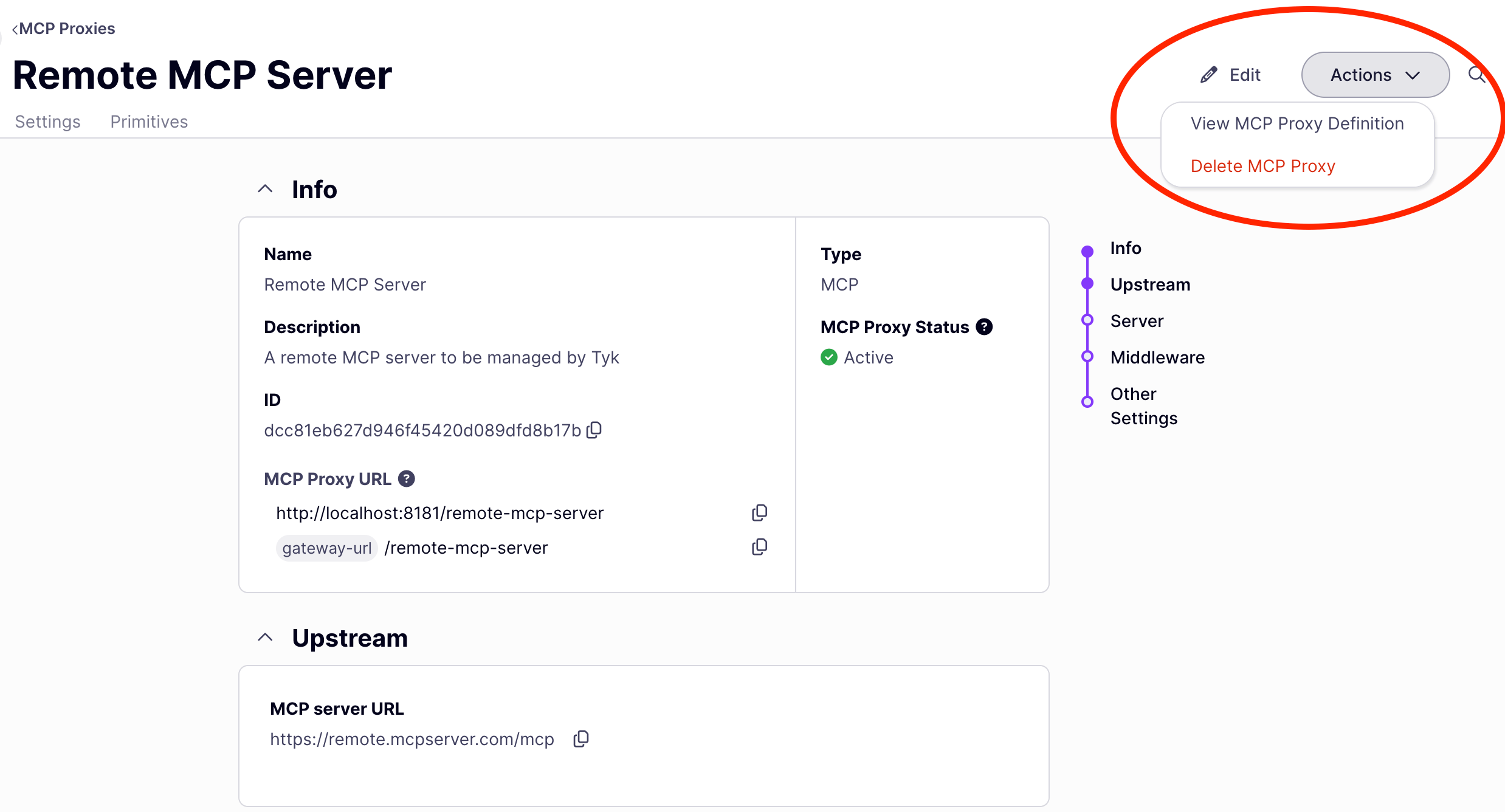
Open the editor via **Actions → View MCP Proxy Definition** on the MCP Designer.
Click an operation to open its detail pane and configure:
| Field | What it does |
| -------------------- | ----------------------------------------------------------------------------------------------------------------------------------------------------------------------------------------------------------------------------------------------------------------------------------------------------------------------------------------------------------------- |
| **Tool Name** | Overrides the tool's caller-facing name. Defaults to the name Tyk derived from the operation (see [MCP Gateway: Core Concepts](/ai-management/mcp-gateway/core-concepts#tool-naming-and-discovery)). |
| **Tool Description** | Overrides the tool's caller-facing description. |
| **Parameters table** | Lists the operation's path, query, header, and body parameters (Name, In, Required, Description). Each parameter has an inline editor to override its caller-facing name and description, which is useful for improving how an LLM interprets the tool, or for resolving a parameter name collision. Leave a field blank to use the original name or description. |
The checkbox next to each operation in the left-hand list controls whether it's exposed: checking it adds the operation as a tool, unchecking it hides the tool without deleting your name, description, or parameter overrides. The detail pane shows an **Exposed** or **Hidden** pill reflecting this state.
Click **Save MCP Proxy** to apply your changes. These map to `x-tyk-mcp-server.primitives[]` in the proxy definition. See [REST API to MCP x-tyk-mcp-server extension](/ai-management/mcp-gateway/api-to-mcp-definitions) for the full field reference.
### Primitives tab
The **Primitives** tab lists every tool, resource, and prompt you have manually registered for this proxy. Each entry shows the primitive's name, its type (Tool, Resource, or Prompt), and the number of middleware rules applied to it. Use the type filter and search input to narrow the list.
**Adding a primitive**
Click **Add Primitive** to open the add primitive modal. Select the type (Tool, Resource, or Prompt) and enter the primitive name: this must match the name the upstream MCP server uses when advertising that primitive. Names cannot contain whitespace and must be unique within their type.
Adding a primitive creates an entry in `x-tyk-api-gateway.middleware.mcpTools`, `mcpResources`, or `mcpPrompts` (depending on type) in the proxy definition.
**Adding middleware to a primitive**
Click a primitive to open its detail view, then click **Add Middleware**. The following middleware is available for primitives:
| Category | Middleware |
| --------------------- | ----------------------------------------------------------------------- |
| Security & Validation | Allow, Block, Ignore Authentication, Request Size Limit |
| Traffic management | Rate Limit, Circuit Breaker |
| Transformation | Transform Request Headers, Transform Response Headers, Virtual Endpoint |
| Analytics | Track Endpoint, Do Not Track Endpoint |
Each middleware option maps to the corresponding configuration block inside the primitive's entry in the proxy definition. See [MCP middleware](/ai-management/mcp-gateway/mcp-middleware) for what each option does and how it is configured.
***
## Editing the full definition
The Dashboard UI covers most proxy configuration. To access advanced options not yet exposed in the UI, such as upstream OAuth, per-primitive token exchange overrides, and traffic management, edit the proxy's underlying definition directly.
Open the editor via **Actions → View MCP Proxy Definition** on the MCP Designer.
 The MCP proxy definition is an OpenAPI 3.0.3 document with an `x-tyk-api-gateway` vendor extension containing all Tyk-specific configuration. The key sections are:
| Section | What it configures |
| ------------------------------------------------------------------------------------------------ | ----------------------------------------------------------------------------------------------------------------------------------------------------------------------------------------------------------------------------------------------------------------------------------------------------------------------------------------------------- |
| `x-tyk-api-gateway.server.authentication` | Authentication method (bearer token, JWT, OAuth, mTLS) and settings. |
| `x-tyk-api-gateway.server.authentication.securitySchemes[name].oauth2.protectedResourceMetadata` | PRM for OAuth 2.1 discovery: the `/.well-known/oauth-protected-resource` endpoint. |
| `x-tyk-api-gateway.upstream` | Upstream URL, load balancing, upstream authentication, and mTLS. For a REST API to MCP proxy, `upstream.url` holds an adapter target (for example `tyk://a1b2c3d4e5f647a8b9c0d1e2f3a4b5c6/mcp`) instead of a remote `https://` URL. See [The upstream adapter target](/ai-management/mcp-gateway/api-to-mcp-definitions#the-upstream-adapter-target). |
| `x-tyk-mcp-server` | REST API to MCP proxies only. Holds the tool catalog: which source operations are exposed, and any name, description, or parameter overrides. See [REST API to MCP x-tyk-mcp-server extension](/ai-management/mcp-gateway/api-to-mcp-definitions). |
| `x-tyk-api-gateway.middleware.mcpTools` | Per-tool middleware: access control, rate limits, timeouts, circuit breakers, request transformation. |
| `x-tyk-api-gateway.middleware.mcpResources` | Per-resource middleware: same options as tools, keyed by resource URI or URI pattern. Not used by REST API to MCP proxies, since REST APIs have no resource or prompt primitives. |
| `x-tyk-api-gateway.middleware.mcpPrompts` | Per-prompt middleware: same options as tools, keyed by prompt name. Not used by REST API to MCP proxies. |
| `x-tyk-api-gateway.middleware.operations` | Method-level middleware applying to all calls of a given JSON-RPC method. |
| `x-tyk-api-gateway.middleware.global` | API-wide middleware applying to all requests. |
After editing, click **Save MCP Proxy** to save and redeploy. Changes are applied to all connected gateways automatically.
### Common edits after initial setup
**Configuring authentication**: The proxy is created with bearer token authentication enabled. To switch to a different method, open the Settings tab and select from the **Authentication type** dropdown. To use the external IdP integration — including scope check, PRM, and token exchange — select **OAuth 2.0**. See [Authentication](/api-management/client-authentication) for all supported methods.
**Enabling PRM for OAuth discovery**: Open the Settings tab, select **OAuth 2.0** as the authentication type, and enable the **Protected Resource Metadata** toggle. Set the resource URL and add at least one authorization server URL. See [OAuth 2.0 authentication](/api-management/authentication/oauth2-authentication) for full configuration details.
**Restricting which tools clients can call**: Use the Primitives tab: add the tool as a primitive, then add **Allow** middleware to it. Once any tool in the proxy has an Allow rule, all unlisted tools are blocked. For definition-based configuration, see [MCP middleware: access control](/ai-management/mcp-gateway/mcp-middleware#access-control).
**Applying rate limits to a specific tool**: Use the Primitives tab: open the tool primitive and add **Rate Limit** middleware. For definition-based configuration, see [MCP middleware: traffic management](/ai-management/mcp-gateway/mcp-middleware#traffic-management).
**Configuring upstream OAuth**: Add an `authentication.oauth.clientCredentials` block to `x-tyk-api-gateway.upstream` to have Tyk obtain and forward OAuth tokens to your upstream MCP server. See [MCP Gateway: OAuth 2.1 authentication](/ai-management/mcp-gateway/oauth-2-1#upstream-oauth).
**Adding CORS or global header transforms**: Configure these in the Settings tab under the middleware section. Changes apply to all requests through the proxy.
For a complete explanation of every field in the definition, see [MCP proxy definition](/ai-management/mcp-gateway/mcp-proxy-definitions).
***
## Delete an MCP proxy
1. In the sidebar, click **MCP**.
2. Open the proxy you want to delete.
3. Click **Actions → Delete MCP Proxy** and confirm.
Deletion removes the proxy definition from the Dashboard and undeploys it from all connected gateways. Associated API keys and policies are not removed automatically; remove the access right from any keys scoped to this proxy, or delete those keys separately.
Deleting an MCP proxy also removes it from any versioning hierarchy it belongs to. If the deleted proxy was a versioned child, the version entry is removed from the base proxy's definition.
The MCP proxy definition is an OpenAPI 3.0.3 document with an `x-tyk-api-gateway` vendor extension containing all Tyk-specific configuration. The key sections are:
| Section | What it configures |
| ------------------------------------------------------------------------------------------------ | ----------------------------------------------------------------------------------------------------------------------------------------------------------------------------------------------------------------------------------------------------------------------------------------------------------------------------------------------------- |
| `x-tyk-api-gateway.server.authentication` | Authentication method (bearer token, JWT, OAuth, mTLS) and settings. |
| `x-tyk-api-gateway.server.authentication.securitySchemes[name].oauth2.protectedResourceMetadata` | PRM for OAuth 2.1 discovery: the `/.well-known/oauth-protected-resource` endpoint. |
| `x-tyk-api-gateway.upstream` | Upstream URL, load balancing, upstream authentication, and mTLS. For a REST API to MCP proxy, `upstream.url` holds an adapter target (for example `tyk://a1b2c3d4e5f647a8b9c0d1e2f3a4b5c6/mcp`) instead of a remote `https://` URL. See [The upstream adapter target](/ai-management/mcp-gateway/api-to-mcp-definitions#the-upstream-adapter-target). |
| `x-tyk-mcp-server` | REST API to MCP proxies only. Holds the tool catalog: which source operations are exposed, and any name, description, or parameter overrides. See [REST API to MCP x-tyk-mcp-server extension](/ai-management/mcp-gateway/api-to-mcp-definitions). |
| `x-tyk-api-gateway.middleware.mcpTools` | Per-tool middleware: access control, rate limits, timeouts, circuit breakers, request transformation. |
| `x-tyk-api-gateway.middleware.mcpResources` | Per-resource middleware: same options as tools, keyed by resource URI or URI pattern. Not used by REST API to MCP proxies, since REST APIs have no resource or prompt primitives. |
| `x-tyk-api-gateway.middleware.mcpPrompts` | Per-prompt middleware: same options as tools, keyed by prompt name. Not used by REST API to MCP proxies. |
| `x-tyk-api-gateway.middleware.operations` | Method-level middleware applying to all calls of a given JSON-RPC method. |
| `x-tyk-api-gateway.middleware.global` | API-wide middleware applying to all requests. |
After editing, click **Save MCP Proxy** to save and redeploy. Changes are applied to all connected gateways automatically.
### Common edits after initial setup
**Configuring authentication**: The proxy is created with bearer token authentication enabled. To switch to a different method, open the Settings tab and select from the **Authentication type** dropdown. To use the external IdP integration — including scope check, PRM, and token exchange — select **OAuth 2.0**. See [Authentication](/api-management/client-authentication) for all supported methods.
**Enabling PRM for OAuth discovery**: Open the Settings tab, select **OAuth 2.0** as the authentication type, and enable the **Protected Resource Metadata** toggle. Set the resource URL and add at least one authorization server URL. See [OAuth 2.0 authentication](/api-management/authentication/oauth2-authentication) for full configuration details.
**Restricting which tools clients can call**: Use the Primitives tab: add the tool as a primitive, then add **Allow** middleware to it. Once any tool in the proxy has an Allow rule, all unlisted tools are blocked. For definition-based configuration, see [MCP middleware: access control](/ai-management/mcp-gateway/mcp-middleware#access-control).
**Applying rate limits to a specific tool**: Use the Primitives tab: open the tool primitive and add **Rate Limit** middleware. For definition-based configuration, see [MCP middleware: traffic management](/ai-management/mcp-gateway/mcp-middleware#traffic-management).
**Configuring upstream OAuth**: Add an `authentication.oauth.clientCredentials` block to `x-tyk-api-gateway.upstream` to have Tyk obtain and forward OAuth tokens to your upstream MCP server. See [MCP Gateway: OAuth 2.1 authentication](/ai-management/mcp-gateway/oauth-2-1#upstream-oauth).
**Adding CORS or global header transforms**: Configure these in the Settings tab under the middleware section. Changes apply to all requests through the proxy.
For a complete explanation of every field in the definition, see [MCP proxy definition](/ai-management/mcp-gateway/mcp-proxy-definitions).
***
## Delete an MCP proxy
1. In the sidebar, click **MCP**.
2. Open the proxy you want to delete.
3. Click **Actions → Delete MCP Proxy** and confirm.
Deletion removes the proxy definition from the Dashboard and undeploys it from all connected gateways. Associated API keys and policies are not removed automatically; remove the access right from any keys scoped to this proxy, or delete those keys separately.
Deleting an MCP proxy also removes it from any versioning hierarchy it belongs to. If the deleted proxy was a versioned child, the version entry is removed from the base proxy's definition.